
Follow the steps below to install the Outlook Plug-In on a single machine:
Click here to download the Outlook Plug-In (.exe file) and double-click to open it. Select Next to begin the installation.
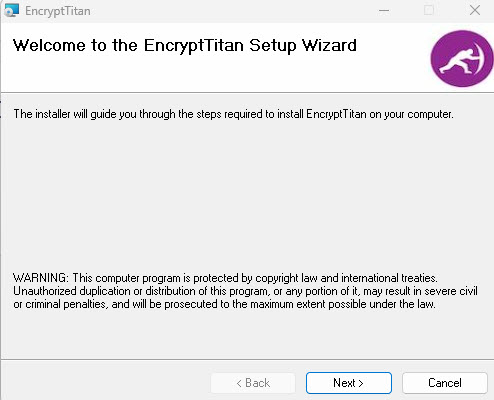
Select I Agree on the License agreement and select Next.
Choose the installation location by selecting Browse, or select Next to use the default location.
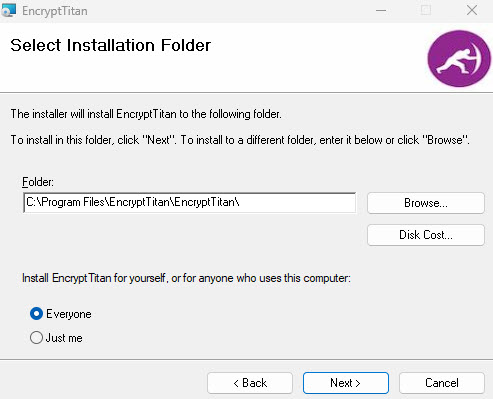
Select Next to confirm installation.
Select Close to exit the installation.
Once installed, the plug-in will be available in your Outlook client. See Using the EncryptTitan Outlook Add-In.